Summary
This article explains how Zaya providers can view and track their earnings and remittances through the portal. It covers how weekly payouts are issued, how to navigate the Earnings and Remittances pages, and how to interpret payment details, including service fees, allowed amounts, and patient responsibilities. The article also explains how to access service line details and understand adjustment codes for each claim.
Zaya issues payouts weekly on Wednesdays for remits received the previous week (Saturday through Friday). You can view and track these from the Payouts page in your portal.
How to View Your Earnings
How to Download Remittance Reports
How to View and Understand Your Remits
How to Download an EOB
How to View Your Earnings
Navigate to the 'Earnings' page
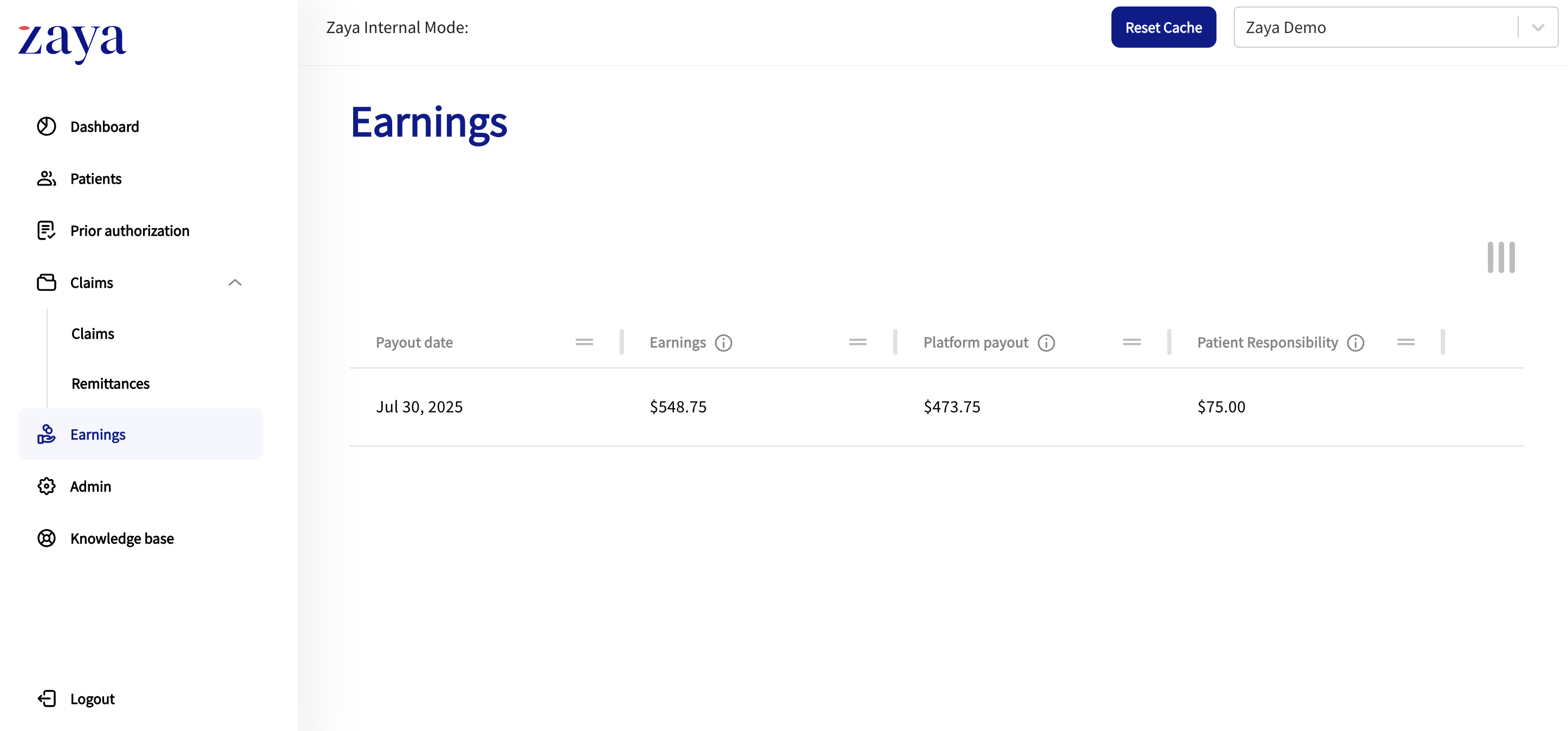
On the table, you can view the following:
Payout date: The date the payment was issued
Earnings: How much you made through Zaya after the service fee.
Calculated as: Platform Payout + Patient Responsibility
Platform payout: The amount Zaya issued to you via ACH. This reflects what Zaya received from the payer, minus any service fee.
Calculated as: Insurance payment – Service fee
Patient Responsibility: The patient's share of the claim set by the payer.
e.g., copay, co-insurance, deductible
To view the remits included in the payout, click on any row. This will take you to the 'Remittances page', with the payout date filter applied
How to Download Remittance Reports
Navigate to the 'Remittances' page under 'Claims'
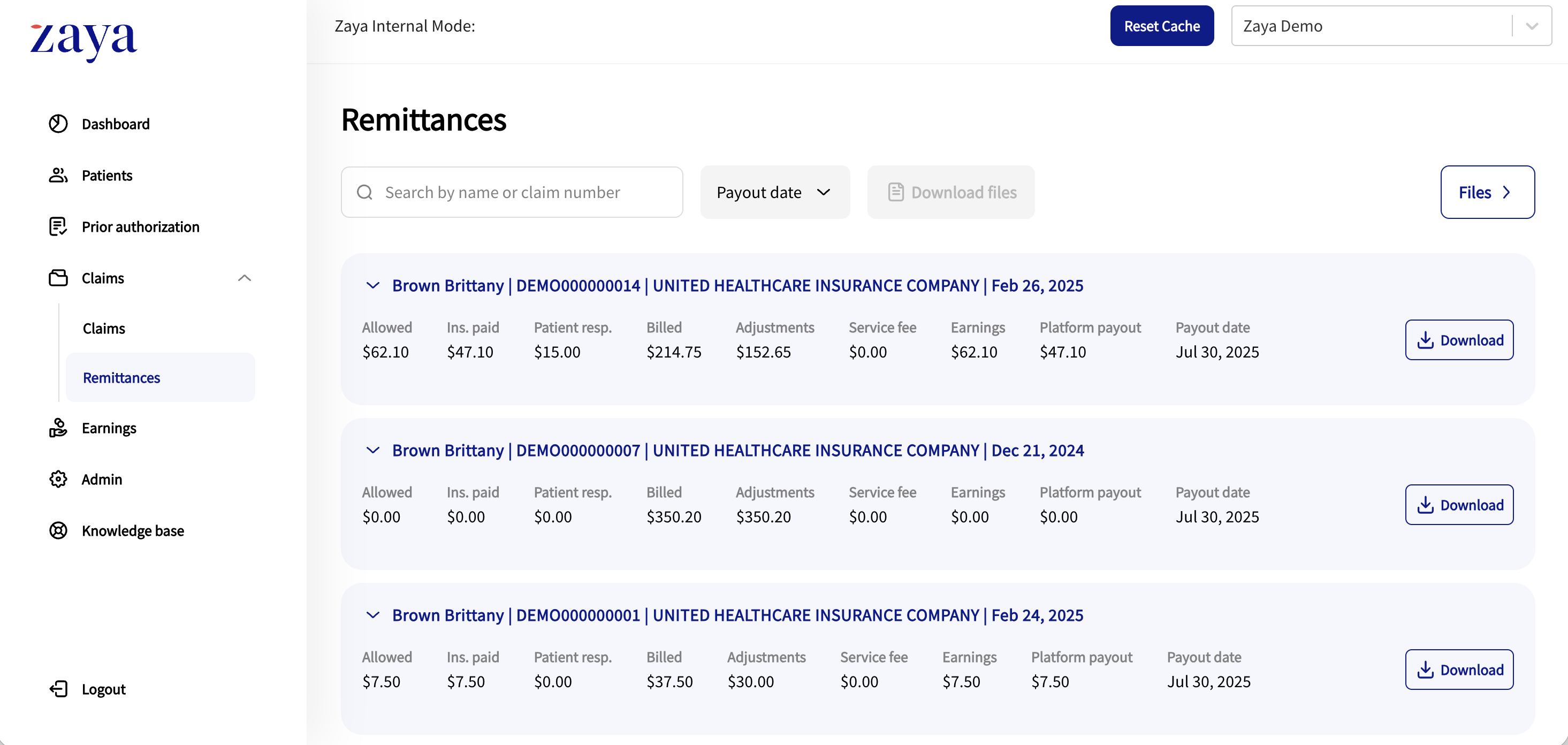
Select the payout date/s you would like to download from the 'Payout date' dropdown.
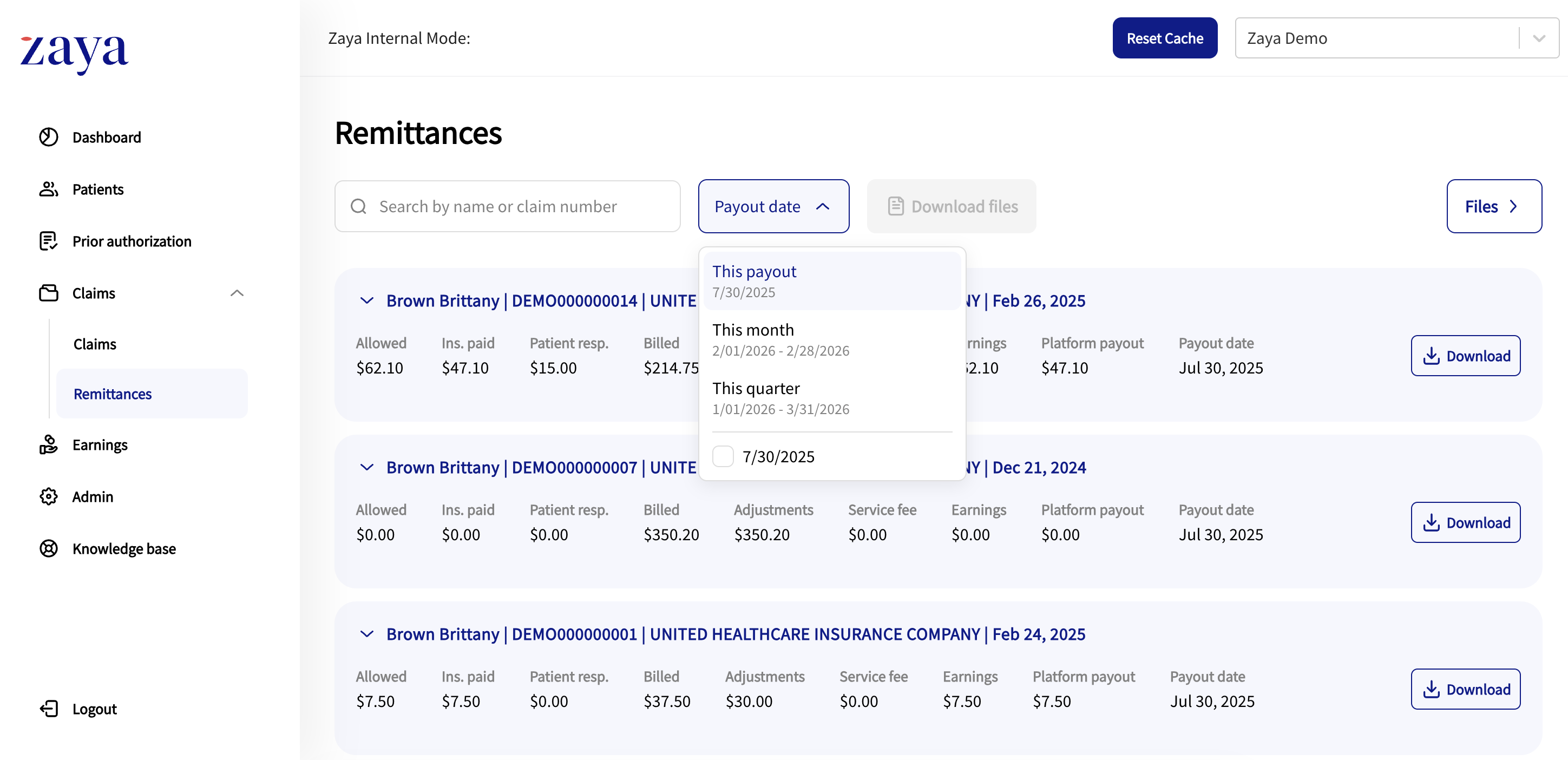
Click the 'Download files' button, then go to 'Files' to check the status of the download. The selected file will download on the background, so you can continue to keep using this page while waiting for the file to finish downloading.
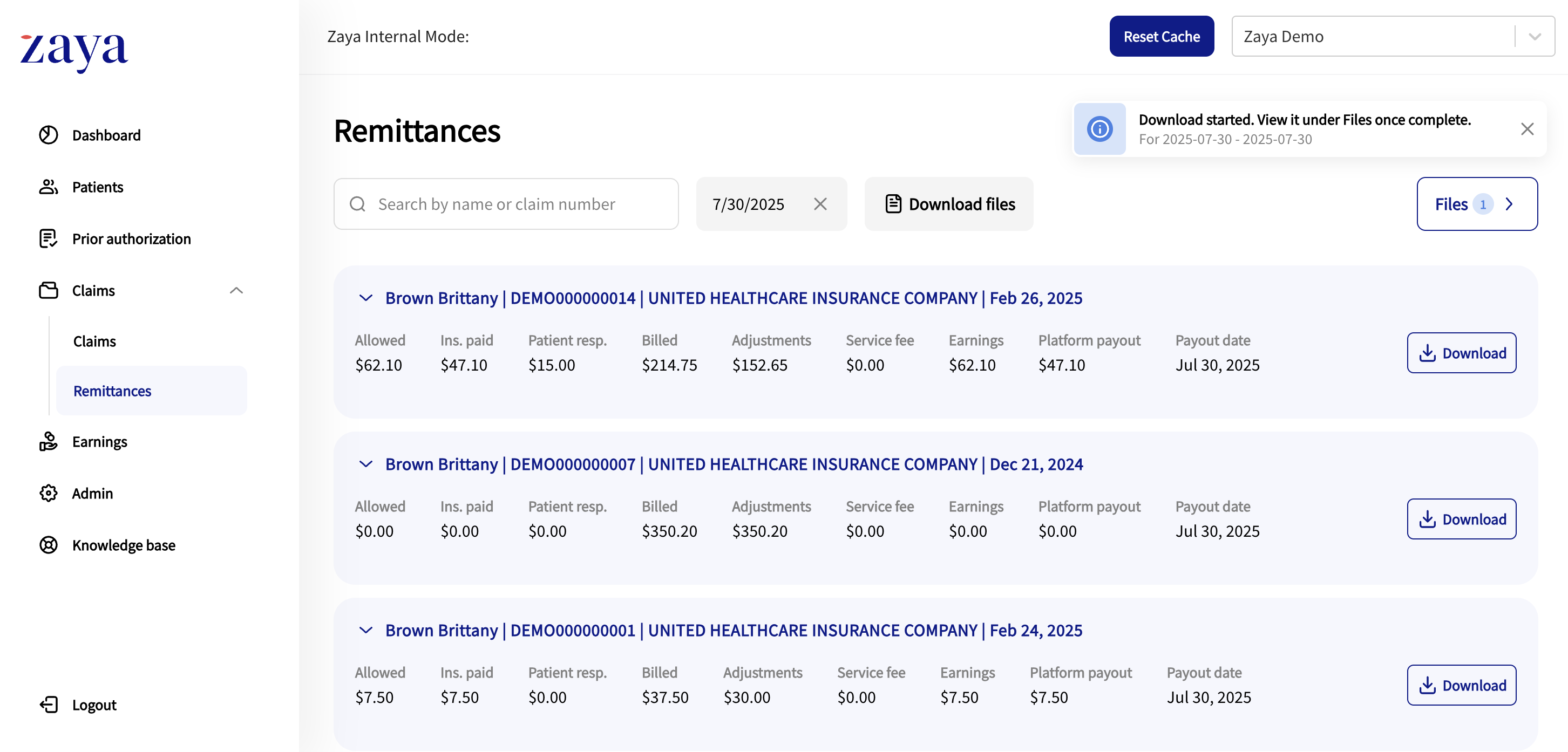
Once the file status changed to 'Available to download', click the 'Download as' button and choose your format preference between PDF and Excel.
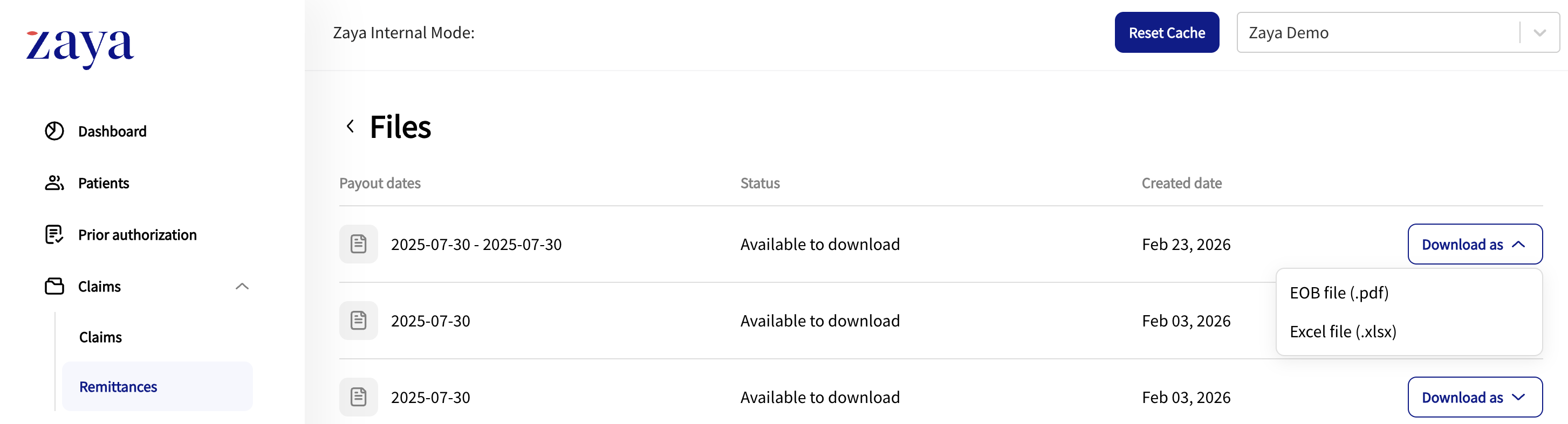
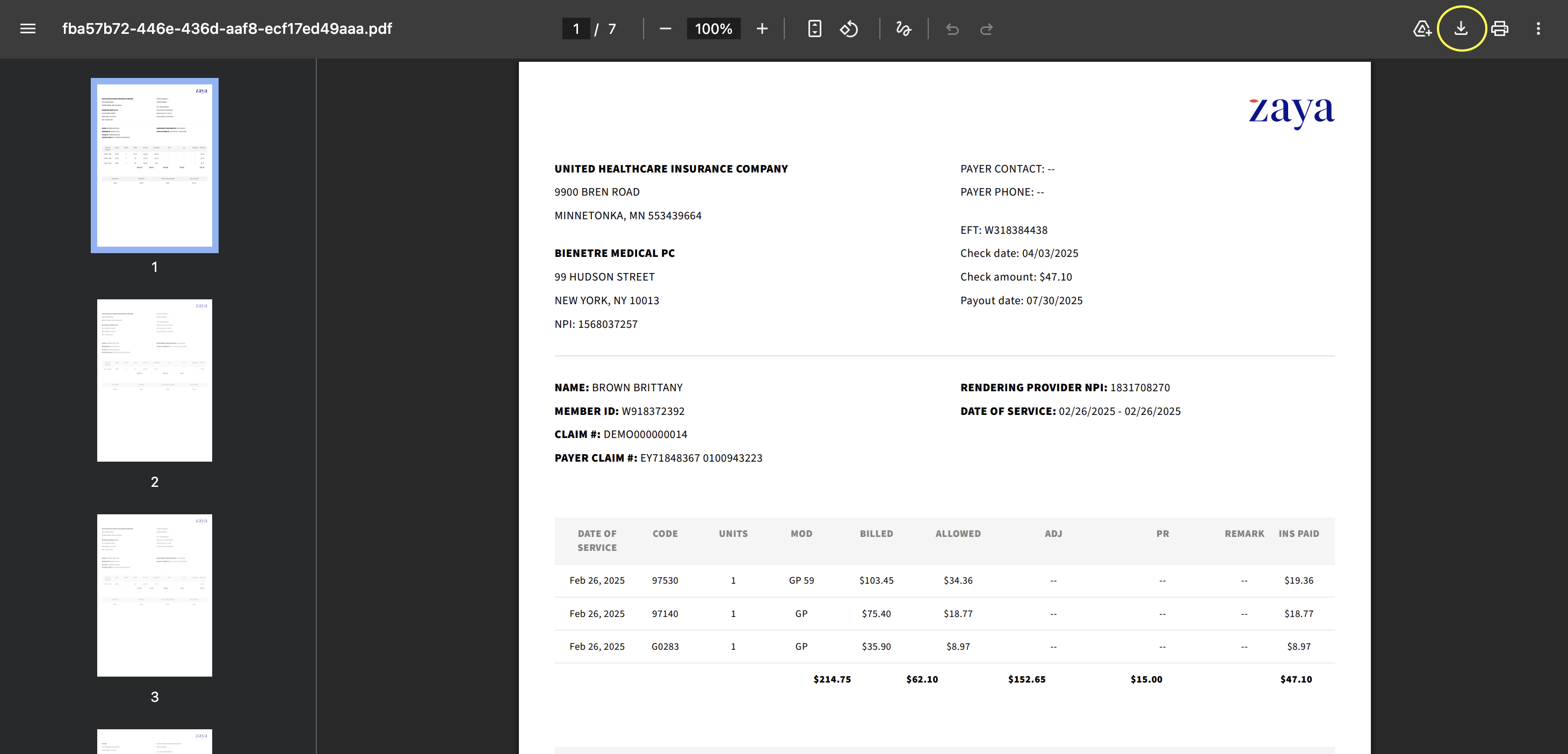
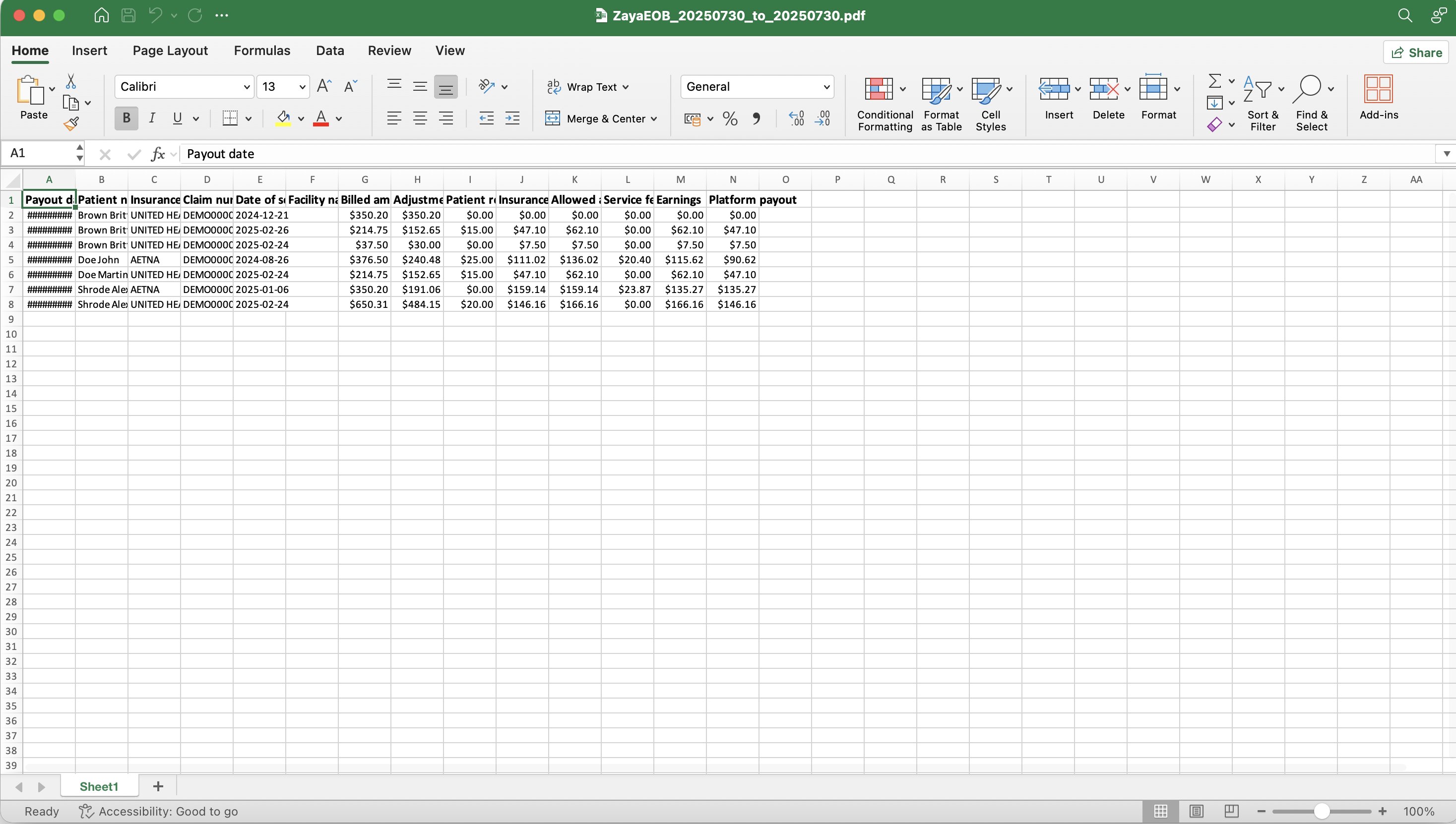
The file will be automatically downloaded to your computer within a few seconds. Below are example preview of the downloaded PDF and Excel files.
PDF (note: make sure to click the ↓ button to download the file to your computer)
Excel
How to View and Understand Your Remits
On the 'Remittances' page, you can view all remits received for your practice. Use the search bar to look up patients by name or apply the payout date filter to narrow your results.
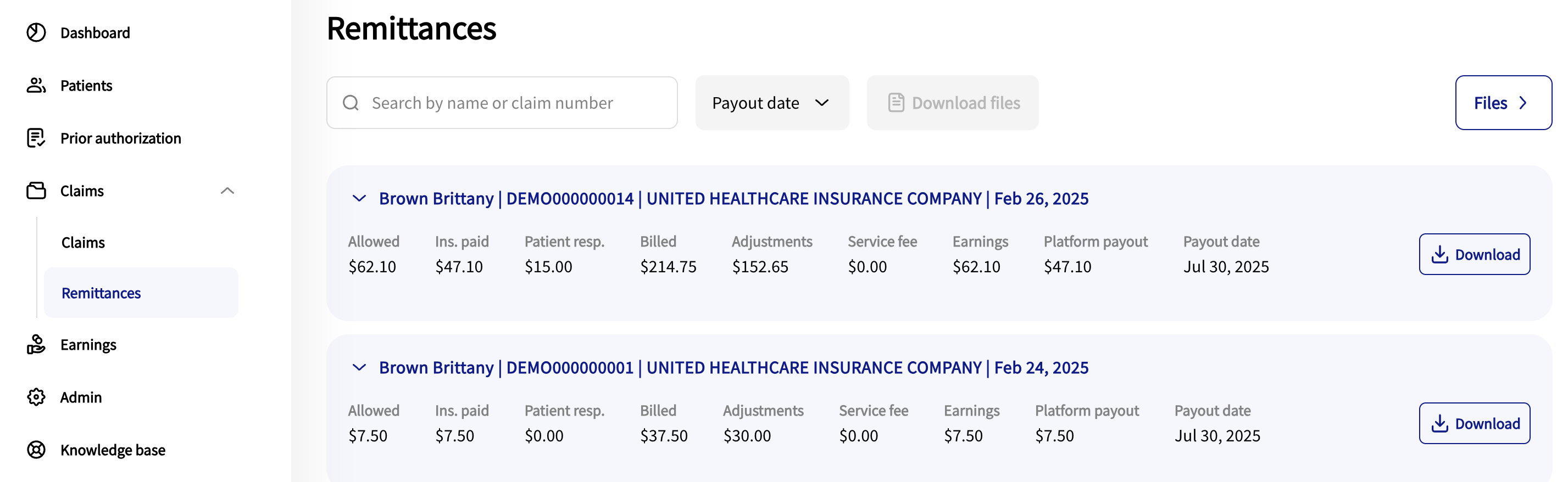
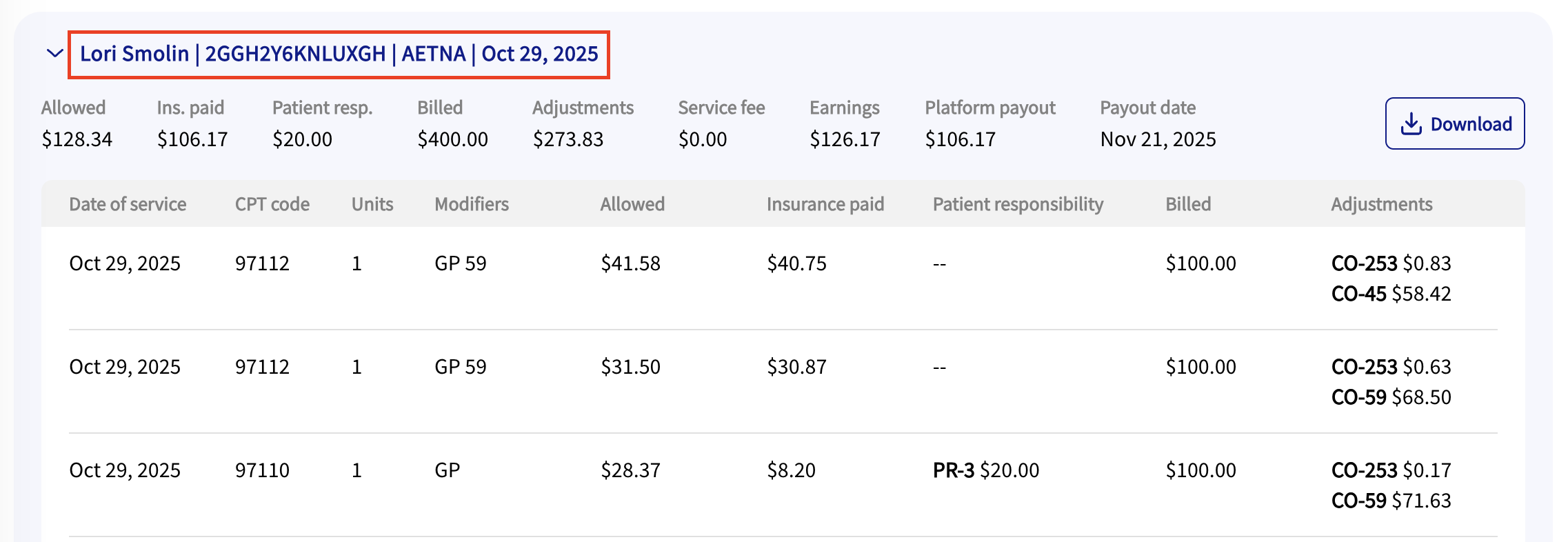
1. Header
Patient Name
Zaya Claim Number (a unique identifier for internal reference)
Insurance name
Date of service
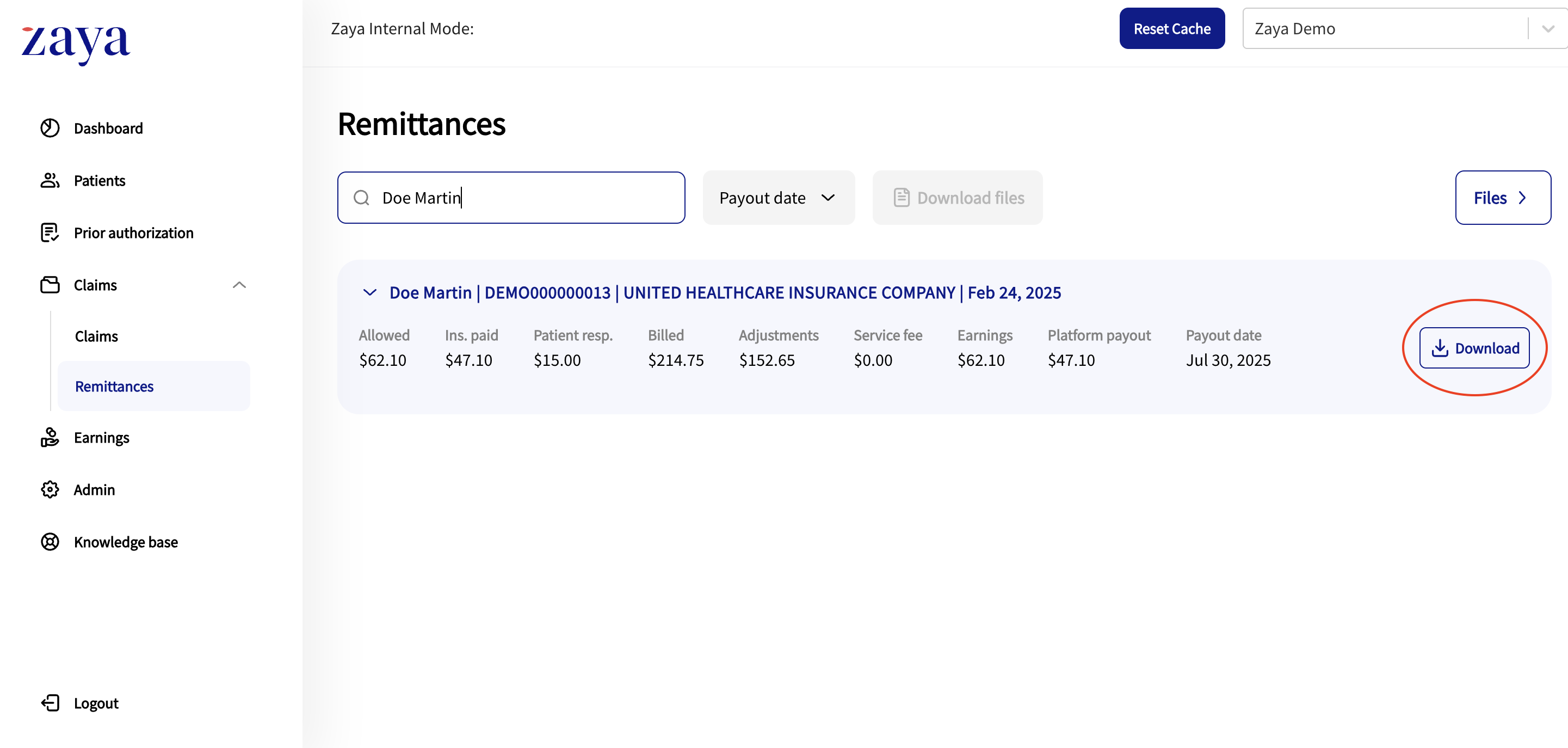
2. Overview of Payment
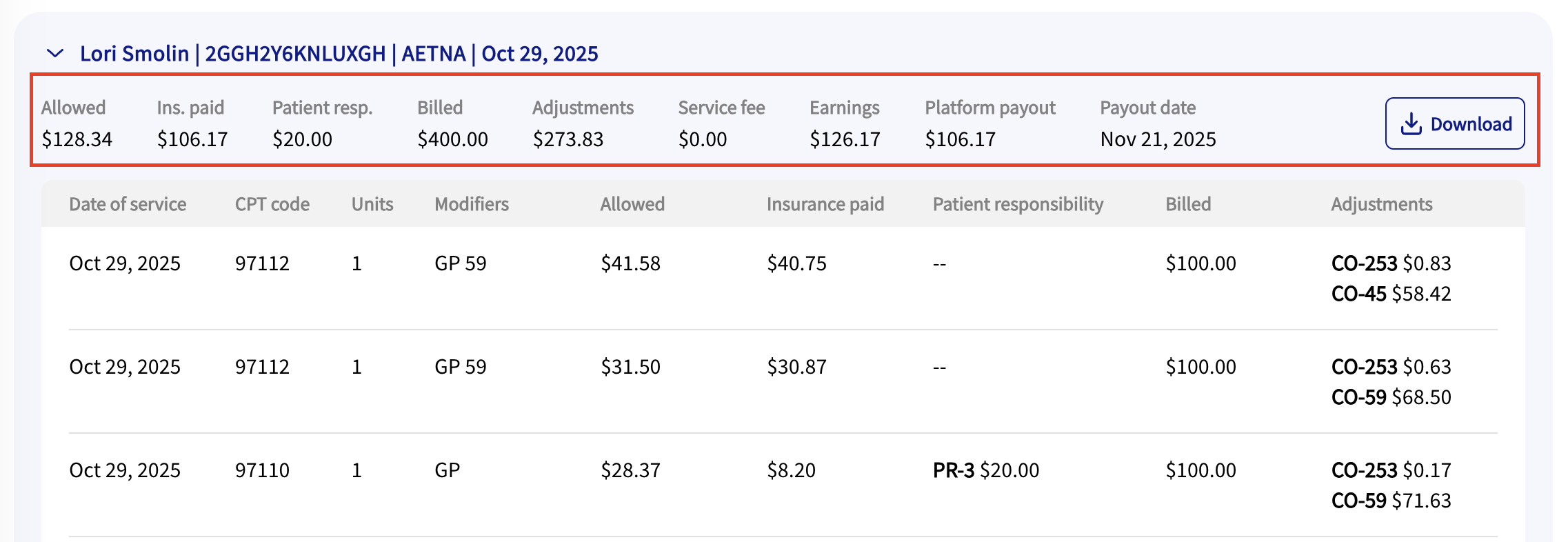
This section displays the date the remit was paid out to the practice, along with a high-level summary of the payment details included in the remit.
Field | Description |
|---|---|
Allowed | Total amount the payer allows for the service |
Ins. paid | Total amount paid by the insurance company |
Patient resp. | Total patient responsibility |
Billed | Total amount billed by Zaya |
Adjustments | Total adjustments by the insurance company |
Service fee | The amount Zaya charged for this specific claim.Calculated as: Allowed amount × Service fee % (based on your contract) |
Earnings | How much you made through Zaya after the service fee.Calculated as: Allowed amount – Service fee |
Platform payout | The amount Zaya issued to you via ACH. This reflects what Zaya received from the payer, minus any service fee.Calculated as: Insurance payment – Service fee |
Payout date | The date Zaya issued the platform payout. |
↓ Download | Allows downloading of the EOB |
3. Service Line Details
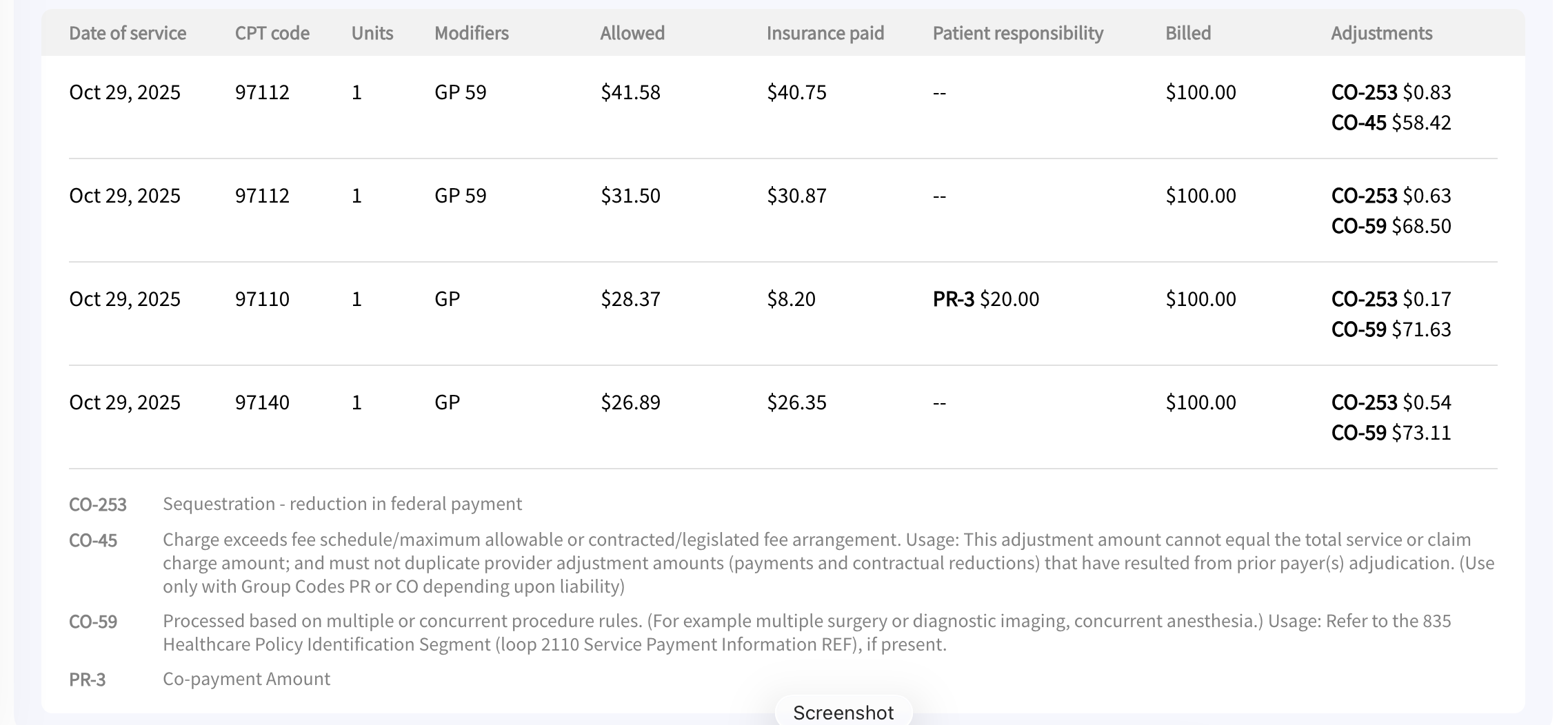
To see a breakdown at the service line level, click into the Service line details section. This includes:
Field | Description |
|---|---|
Code | CPT code |
Units | Number of units billed |
Modifiers | Modifier codes, if applicable |
Allowed | Amount allowed by the payer |
Insurance paid | Amount paid by the payer |
Patient responsibility | Patient responsibility |
Billed | Amount billed for that specific line |
Adjustments | Adjustments made by the payer |
At the bottom of the remit view, you'll find definitions for any adjustments codes or patient responsibility codes shown. These are standardized codes sent by the payer that explain why adjustments were made.
How to Download an EOB
Navigate to the 'Remittances' page under 'Claims'
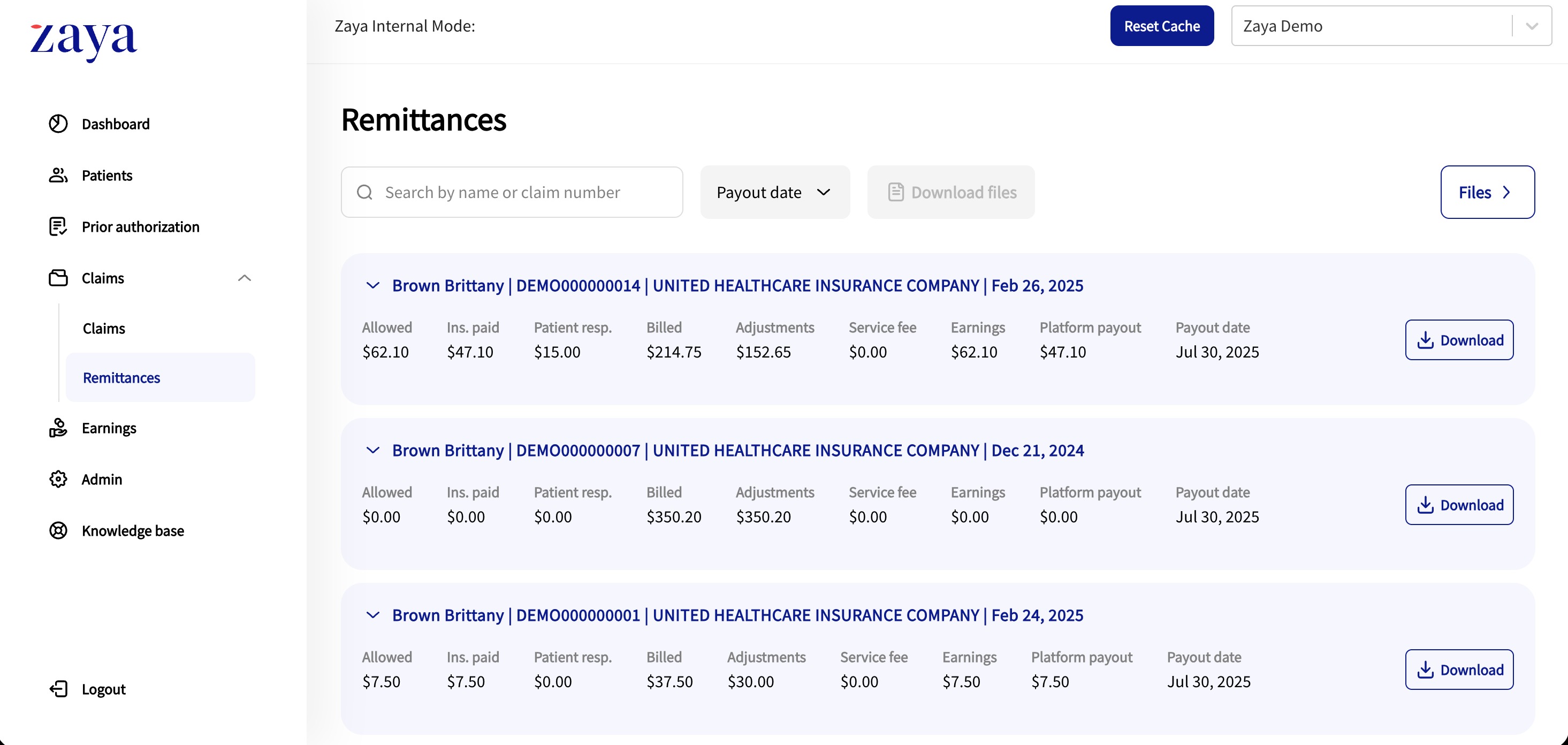
Use the 'Search by name or claim number' field to type the individual EOB that you wish to download, then click the '↓ Download' button.
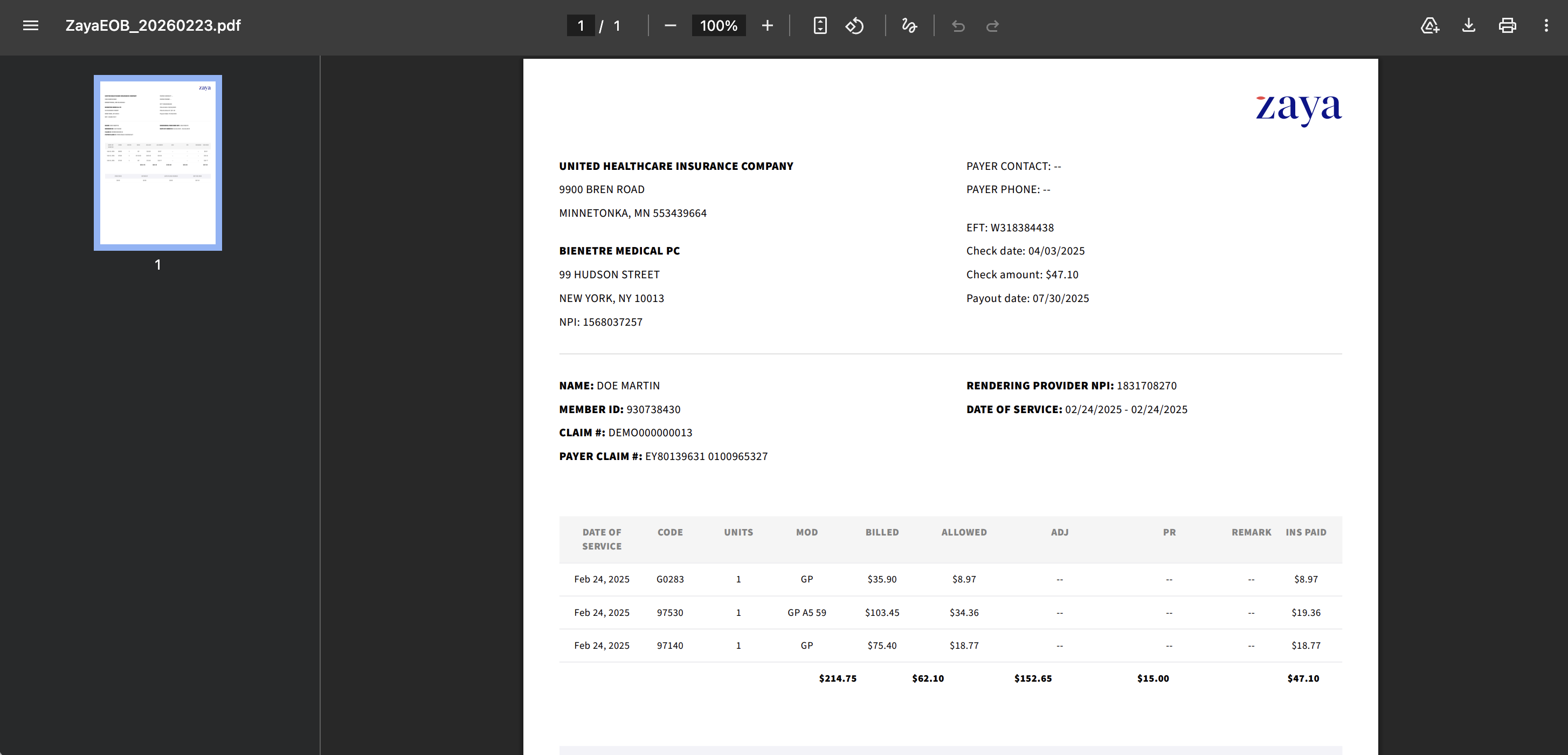
The file will be automatically downloaded to your computer within a few seconds. Below is a preview of the downloaded EOB (note: note: make sure to click the ↓ button to download the file to your computer)
Was this article helpful?
That’s Great!
Thank you for your feedback
Sorry! We couldn't be helpful
Thank you for your feedback
Feedback sent
We appreciate your effort and will try to fix the article