Summary
You can now offload the submission of medical records entirely to Zaya by providing us with EMR access. If not, you are able to upload medical records directly through the Zaya portal. This article explains these different options, and answers common questions.
EMR Access
EMR access helps us retrieve records more efficiently and respond to payer requests faster. Zaya has in-house release of information specialists who have years of experience doing this! We hope to expand this to all of our practices as soon as possible.
When Zaya has EMR access:
You remain responsible for maintaining complete and accurate documentation.
Documentation must be finalized and signed in your EMR in a timely manner.
Records must clearly support medical necessity and skilled care.
If Zaya does not have access to your EMR:
You must upload medical records directly through the Zaya portal (follow the steps below)
INTERESTED IN EMR ACCESS?? - Please contact Samantha@zayacare.com to learn more!
Step-by-step instructions for how to upload medical records
Step 1: Navigate to Claims Page
Step 2: Search for the claim by patient name (Select the correct date of service)
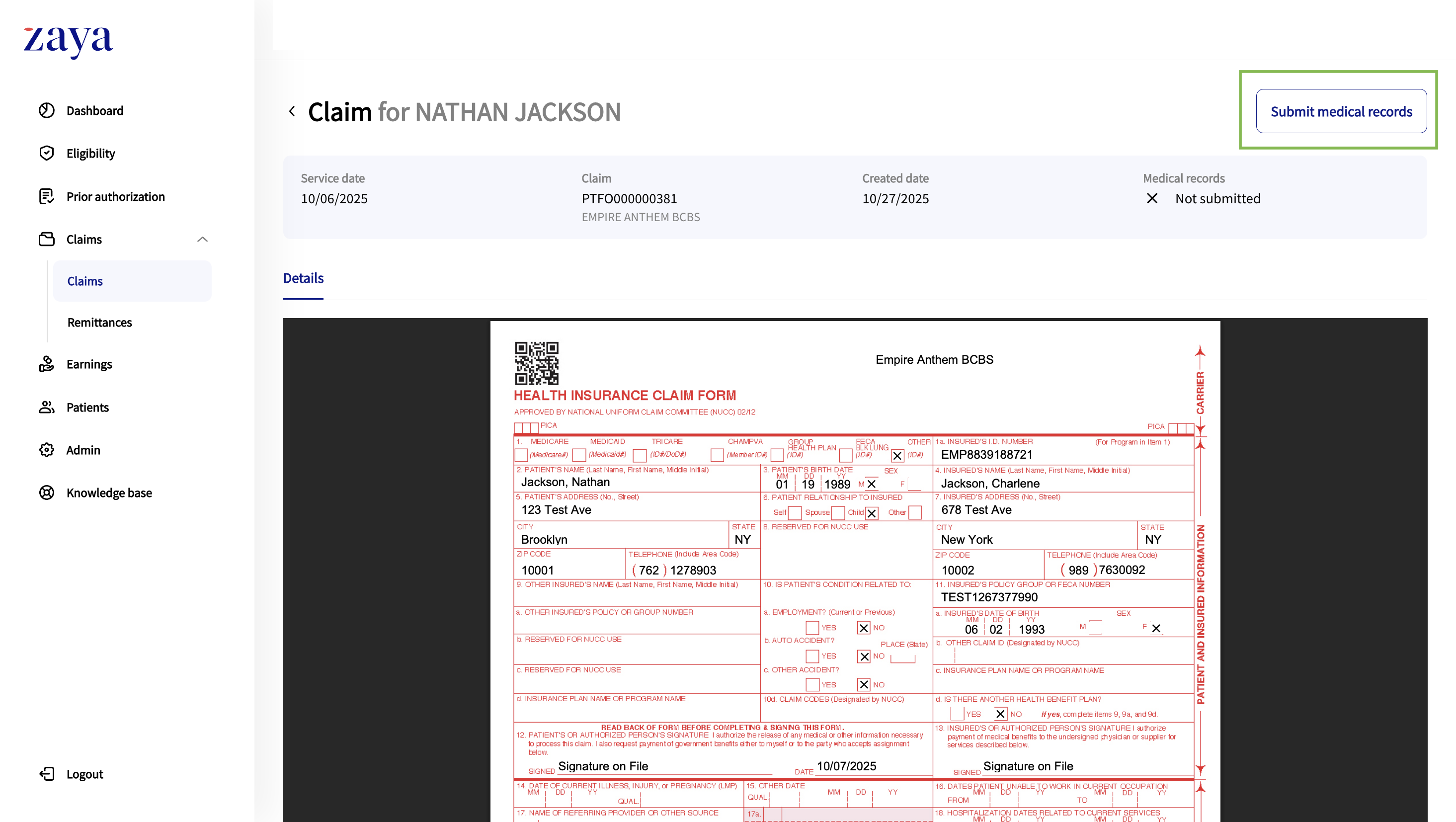
Step 3: Click on the claim
Step 4: Click 'Submit Medical Records' (Uploading records to the wrong claim will delay payment. Make sure the documentation is uploaded under the correct patient and date of service.)
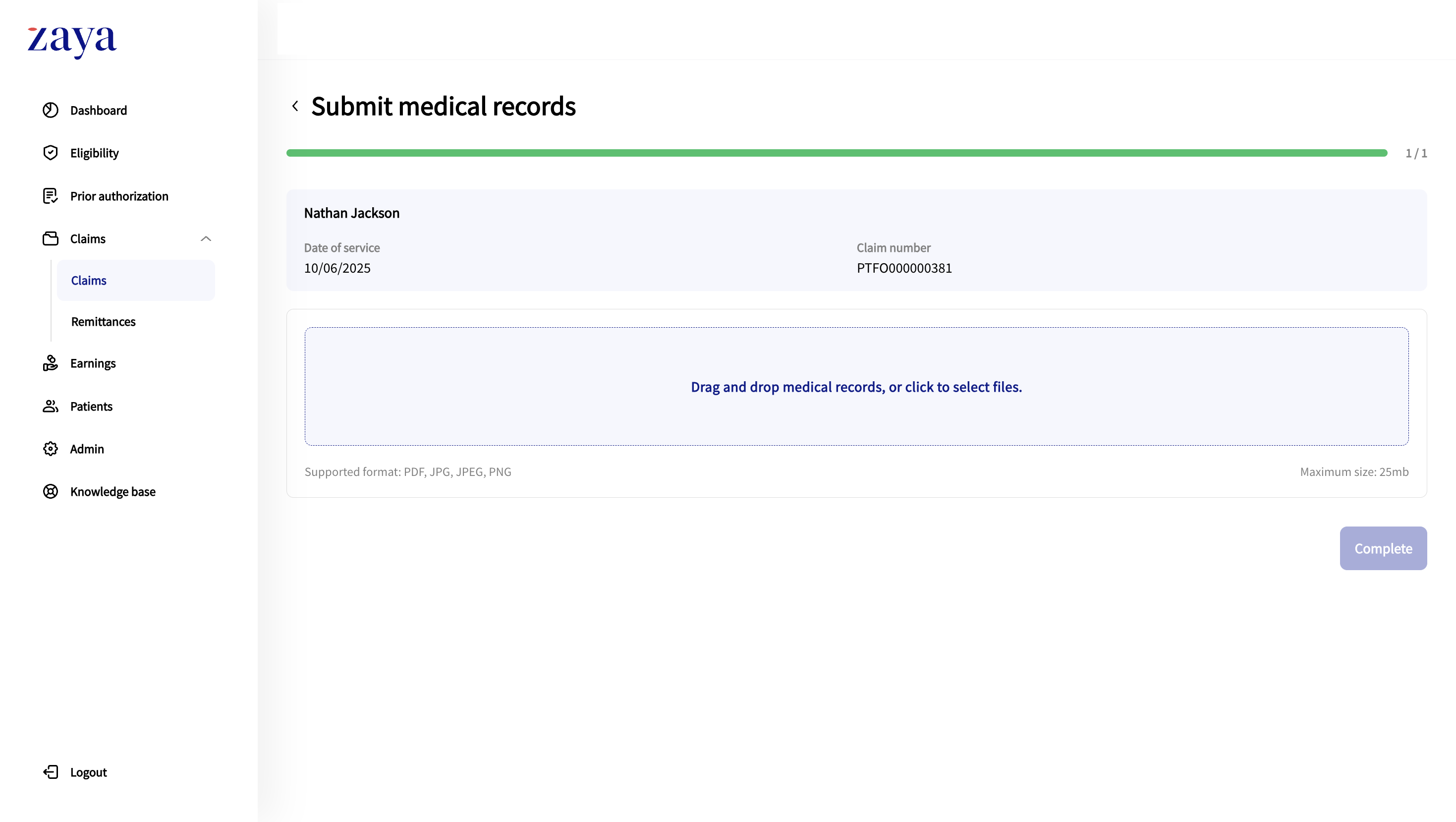
Step 5: Choose the files from your computer and confirm the upload
Common Questions
Which claims can I upload medical records for?
From the Claims page, you can use the Medical Records column to see which claims allow you to upload medical records.
 Records successfully uploaded to Zaya.
 Records cannot be uploaded yet. Option will be available shortly.
 No records on file.
 Records for this claim must be submitted via this form.
How to view uploaded medical records
If a claim has a checkmark under the Medical records column on the Claims page, you can click into the row to view the uploaded records.
Navigate to the Claims page
Search for the claim by patient name and ensure you select the correct date of service
Select 'View Medical Records'. If there are multiple attachments, you can click into each one individually
What should I include in the medical records
For successful reimbursements ensure your clinical documentation clearly outlines the following
One-on-one skilled care
Medical necessity for the service provided
Objective clinical findings
Provider's active involvement (not general or non-skilled care)
In case of a denial, review your documentation and add any missing details such as
Specific goals addresses
patient progress notes
Functional impairments addressed with skilled intervention
Do I need to submit documentation for each date of service
Yes. You are required to to submit the documentation per date of service, not combined.
Was this article helpful?
That’s Great!
Thank you for your feedback
Sorry! We couldn't be helpful
Thank you for your feedback
Feedback sent
We appreciate your effort and will try to fix the article