Summary
You can submit claims through the Claims page using one of two methods:
Upload a CMS-1500 (HCFA) PDF
Enter claim details manually in the portal
Option 1: Upload HCFA PDF
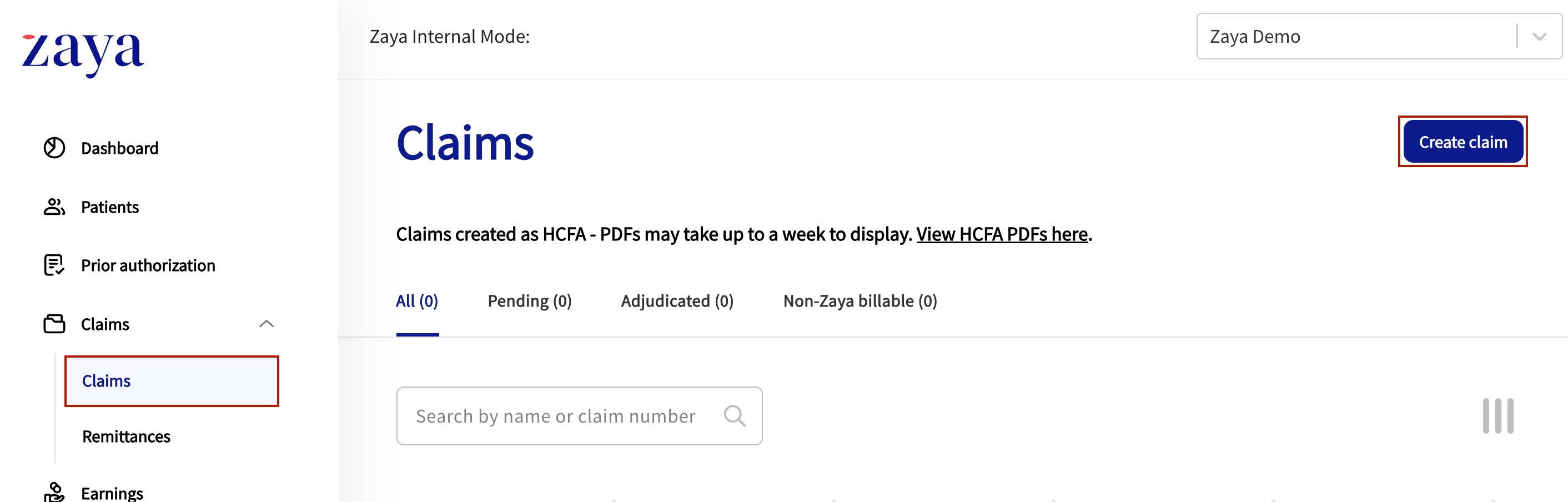
Step 1: Create a Claim
Go to the Claims page.
Click Create Claim.
Step 2: Generate and Upload CMS-1500 (HCFA) Forms
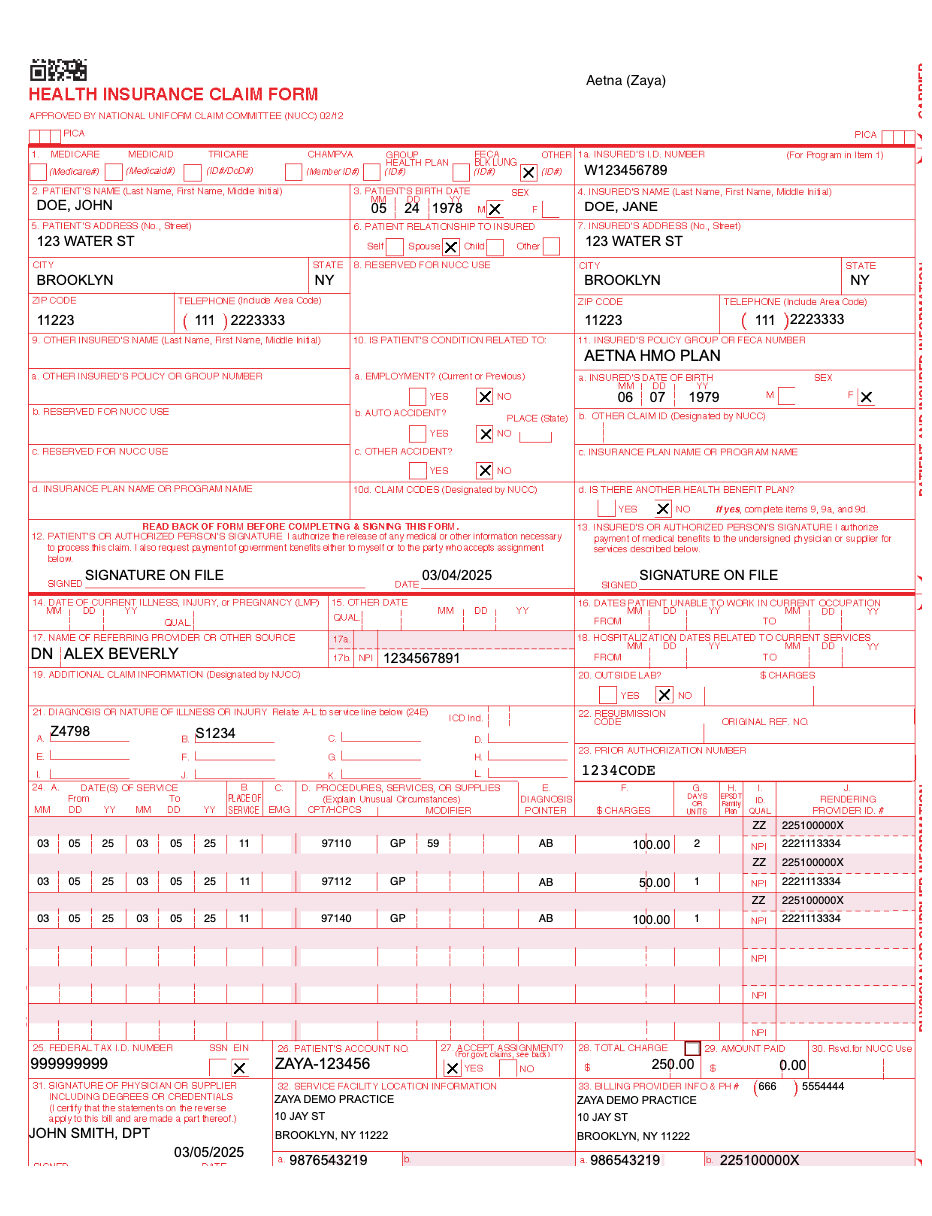
In your EMR, generate and download the CMS-1500 (HCFA) form for each claim.
Confirm each form includes all required information:
Patient and subscriber details
Payer name and Member ID
Diagnosis codes
CPT codes, modifiers, and pointers
Rendering provider name and NPI
Service facility details
Prior authorization number (if applicable)
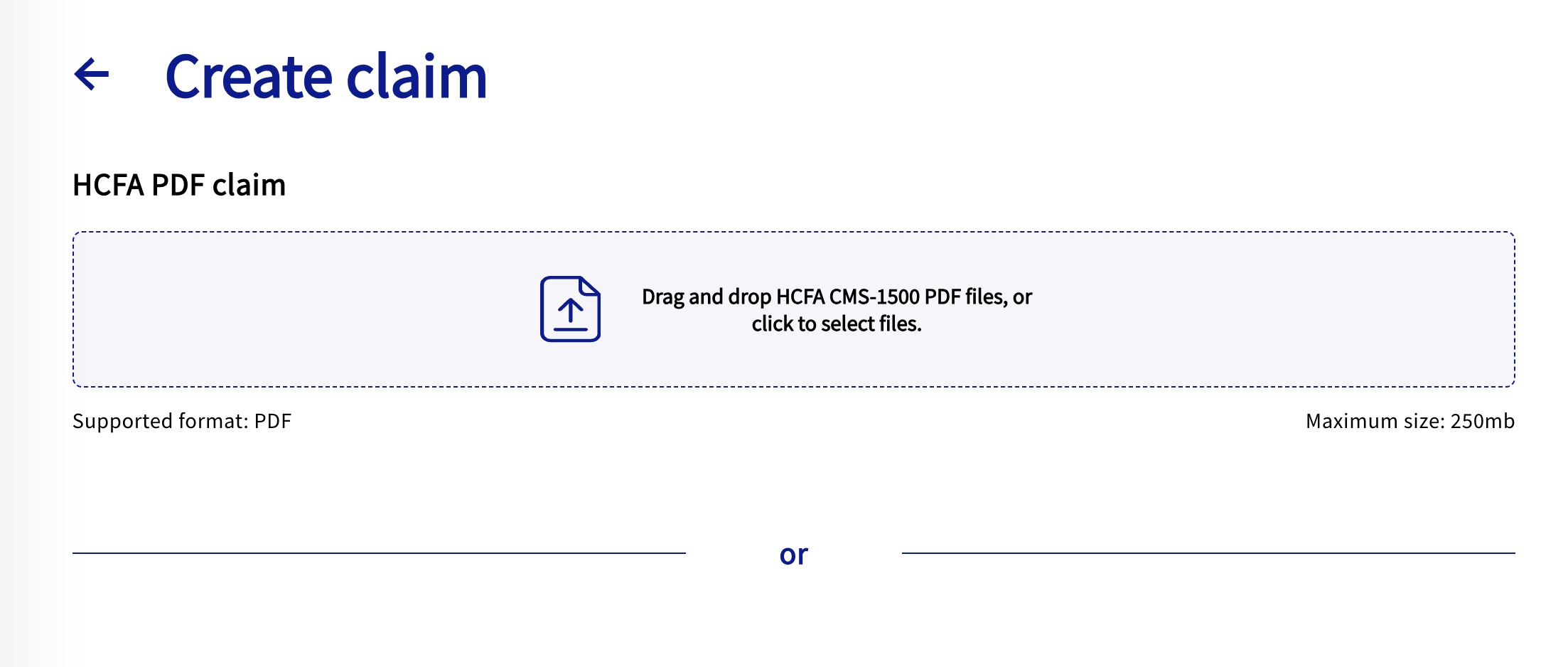
Step 3: Upload the PDF by dragging and dropping it into the upload section or selecting it from your computer.
PDF format only
Maximum file size: 250 MB
Multiple claims may be combined into a single PDF
Click Upload after selecting all files
Confirm all files are uploaded in the 'View HCFA PDFs' page
Zaya will automatically:
Update each claim with our medical PC’s billing provider information
Apply our charge rates before submitting to the payer
After upload:
Claims are processed by the Zaya team
Once extracted, each claim appears on the Claims page with a Pending status
Processing typically takes 48 hours, but no more than one week
Click View original claim under the Action column to view your submitted HCFA file
Option 2: Manual Claim Submission
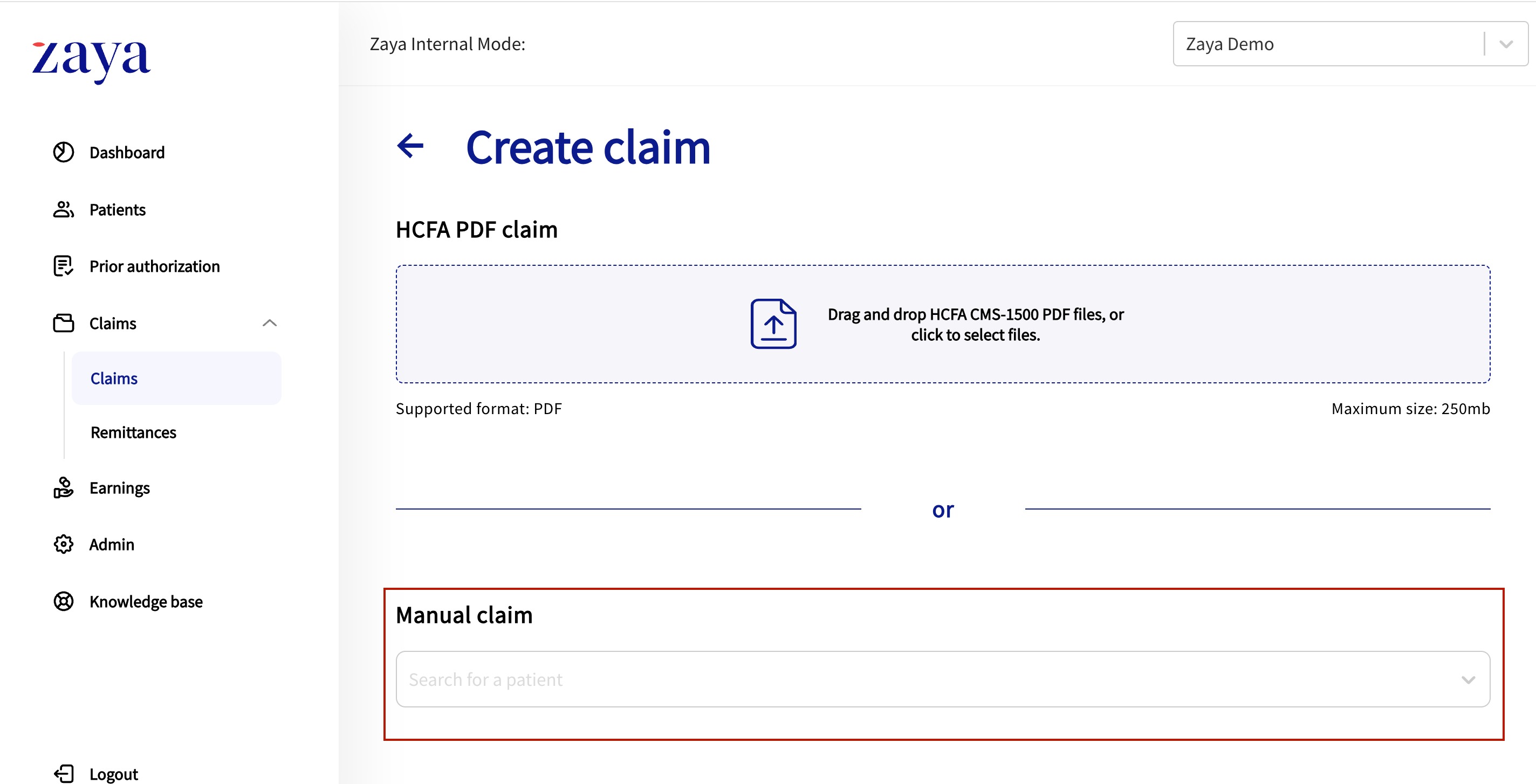
Step 1: Select or Add a Patient
Click Create Claim.
Select an existing patient from the dropdown or click Add New Patient.
Click Next.
Step 2: Enter Claim Details
Complete all required fields in the claim form.
Click Create.
After submission:
The claim appears immediately on the Claims page
Each claim displays as a new row
Click View original claim under the Action column to review the claim
Submitted a Claim in Error
If you submitted a claim by mistake or need to make a correction:
Email support@zayacare.com with the claim details
Our team will assist with the correction
Was this article helpful?
That’s Great!
Thank you for your feedback
Sorry! We couldn't be helpful
Thank you for your feedback
Feedback sent
We appreciate your effort and will try to fix the article