Zaya Care offers an optional service to handle prior authorization (PA) requests for your patients.
You can choose to:
- Use Zaya’s prior auth service, or
- Handle prior auth on your own.
No matter which option you choose, the prior auth number (Auth #) must always be entered on the CMS-1500 claims form before submitting it to Zaya.
If You Want Zaya to Obtain Prior Authorization for You
Run an eligibility check
- Go to the “Eligibility” tab on your Zaya portal.
- After running the check, if the patient requires prior authorization, they will automatically appear under the “Prior Authorization” tab.
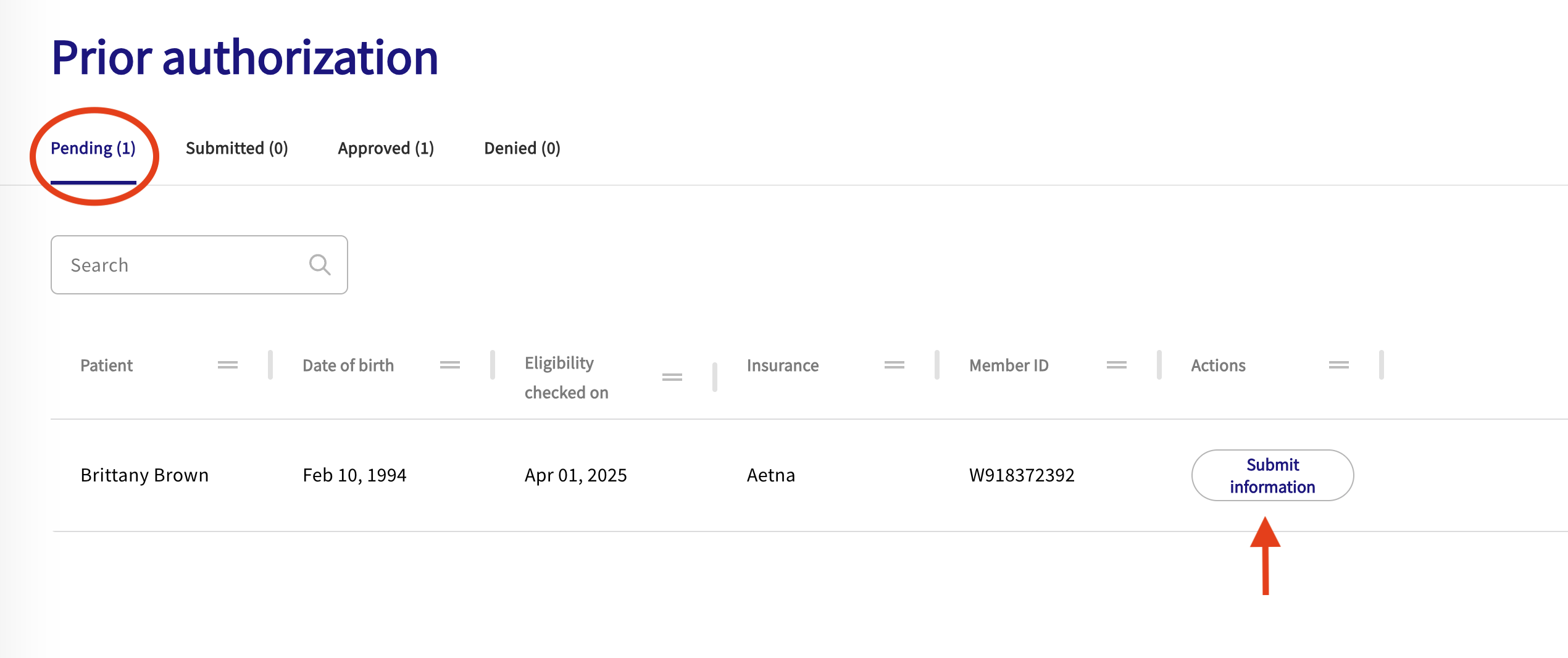
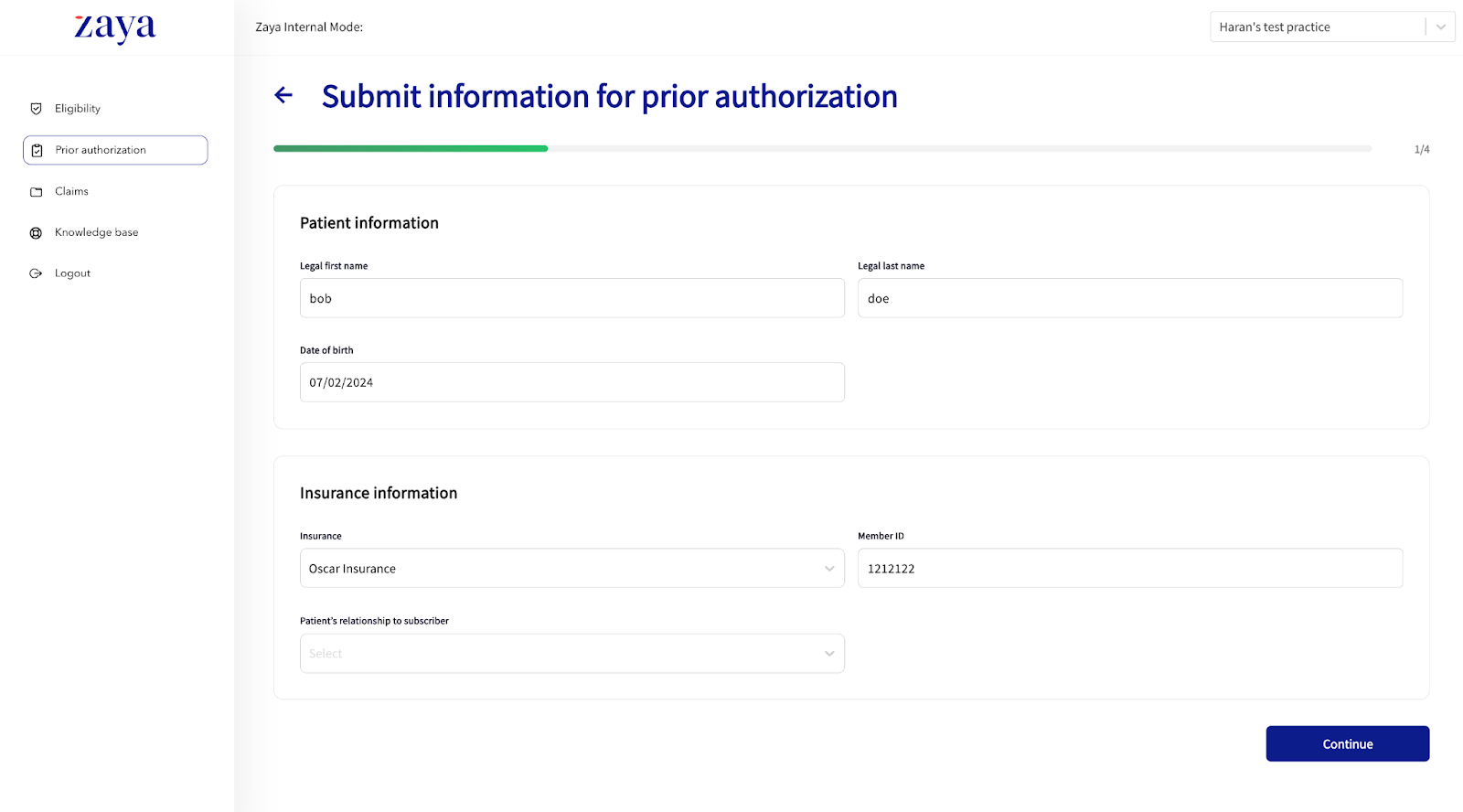
2. Press 'Submit Information' to begin completing the patient's form. Use the 'Continue' and 'Back' buttons to navigate through the form.
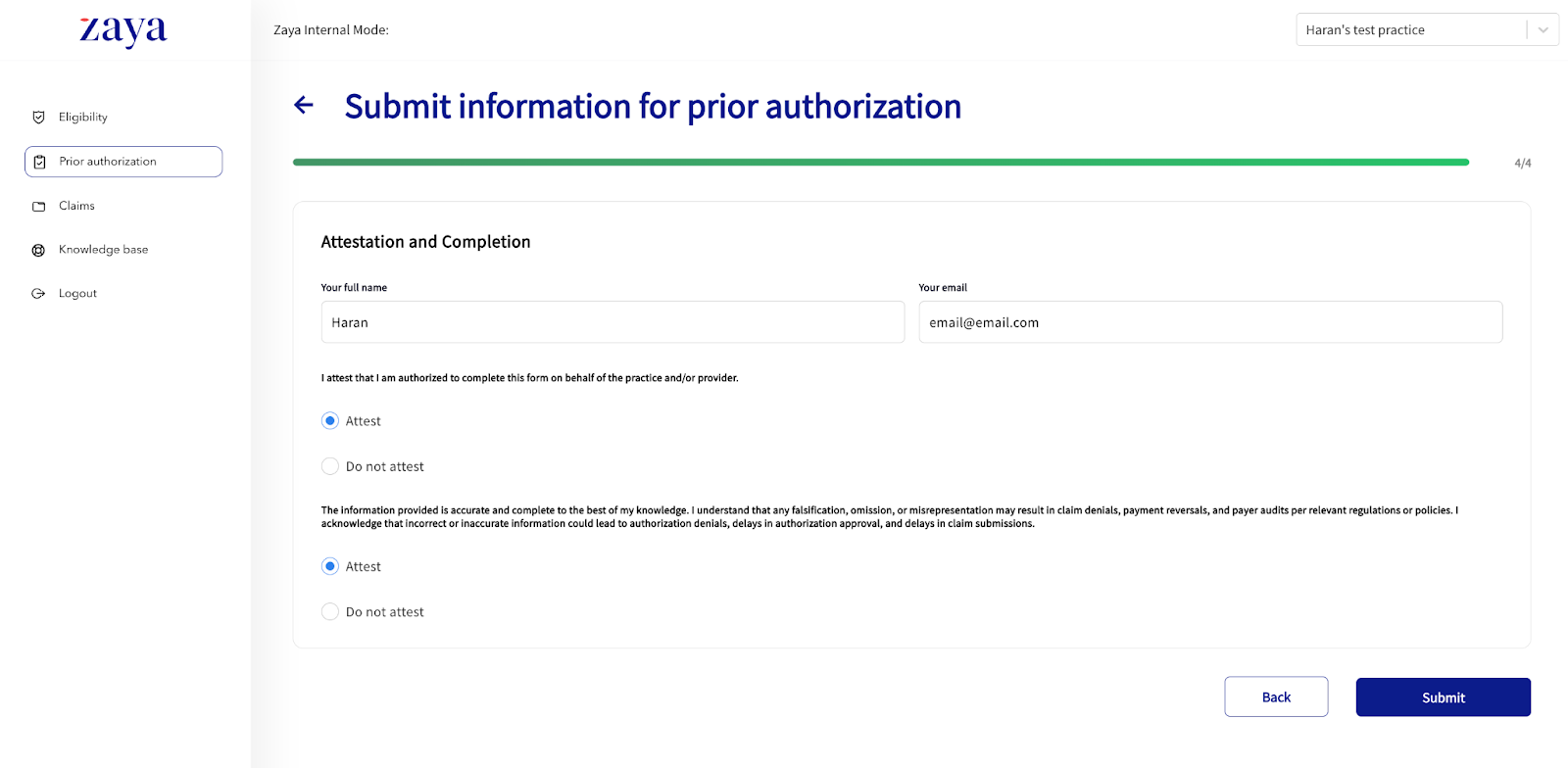
3. In the final step, Attestation and Completion, you must attest to submit the form to Zaya.
Zaya's team submits the authorization request to the payer within 24–48 business hours.
If we need more details, our Support team will contact you directly via email.
View authorization outcomes
, Once the payer responds, the patient will move from “Submitted” within the Prior Authorization tab, to either:
- Approved – The payer approved the request. You’ll see the Auth #, approval date, date range, and approved visits/units.
- Denied – The payer denied the request. You’ll see the denial date and can review next steps.
Reauthorization
To prevent interruptions in care:
Go to the “Approved” tab when the current authorization is nearing its end date or when approved visits/units are nearly used up.
Submit a new authorization request before expiration to maintain continuous patient coverage.
Some EHRs automatically track authorization expiration dates—use these reminders to stay ahead.
Was this article helpful?
That’s Great!
Thank you for your feedback
Sorry! We couldn't be helpful
Thank you for your feedback
Feedback sent
We appreciate your effort and will try to fix the article